Clear a Stuck Print Queue in Windows 11
Cancel stalled jobs, restart the Print Spooler safely and use the deeper queue reset only when ordinary cancellation fails.
On this page
Cancel the queue, restart both devices, then restart Print Spooler
Open Settings → Bluetooth & devices → Printers & scanners, select the printer and choose Open print queue. Cancel each job. Restart the printer and PC. If jobs remain, open Services, find Print Spooler and choose Restart.
Windows 11 with a locally installed USB, Wi-Fi or network printer.
Researched from official documentation; not independently lab-tested on every device. In-step visuals are labelled explanatory diagrams, not Windows screenshots.
Rule out the printer before resetting Windows
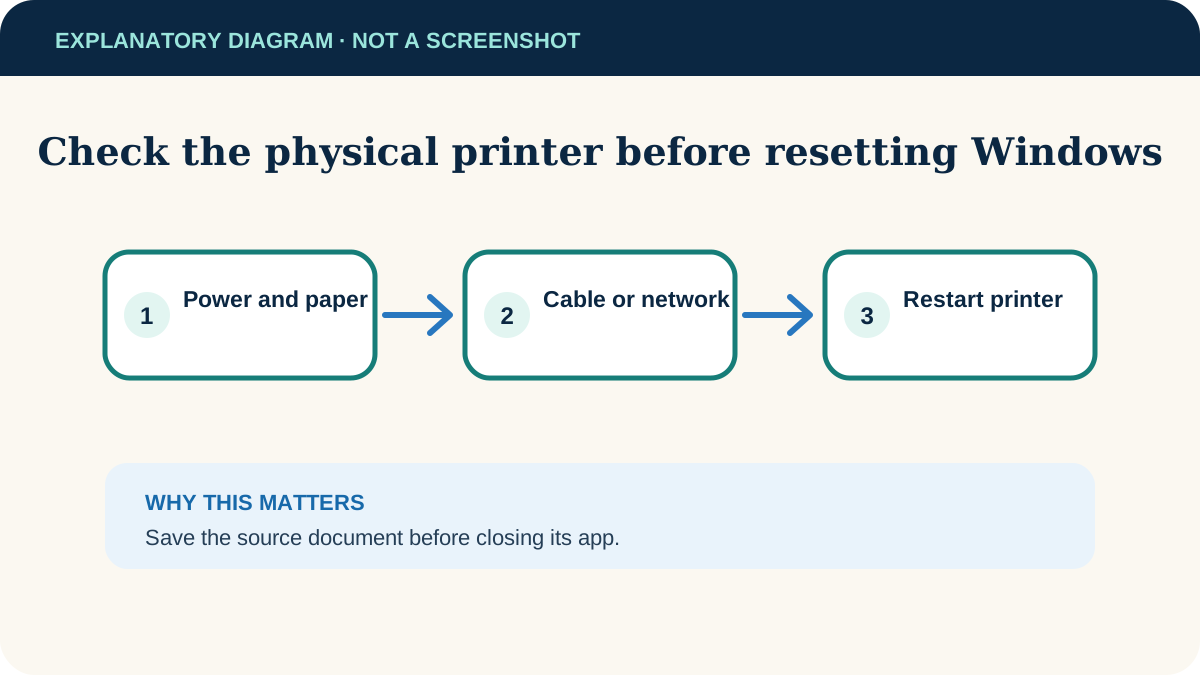
- Check that the printer is powered on, has paper and shows no jam, cover or ink/toner warning.
- For USB, reseat the cable at both ends. For Wi-Fi, confirm the printer and computer are on the expected network.
- Turn the printer off, unplug it for about 30 seconds, reconnect it and turn it on.
- Save the document before closing the app that submitted the job.
These checks matter because a perfectly healthy Windows queue cannot make an offline or error-state printer accept work.
Cancel jobs from the print queue
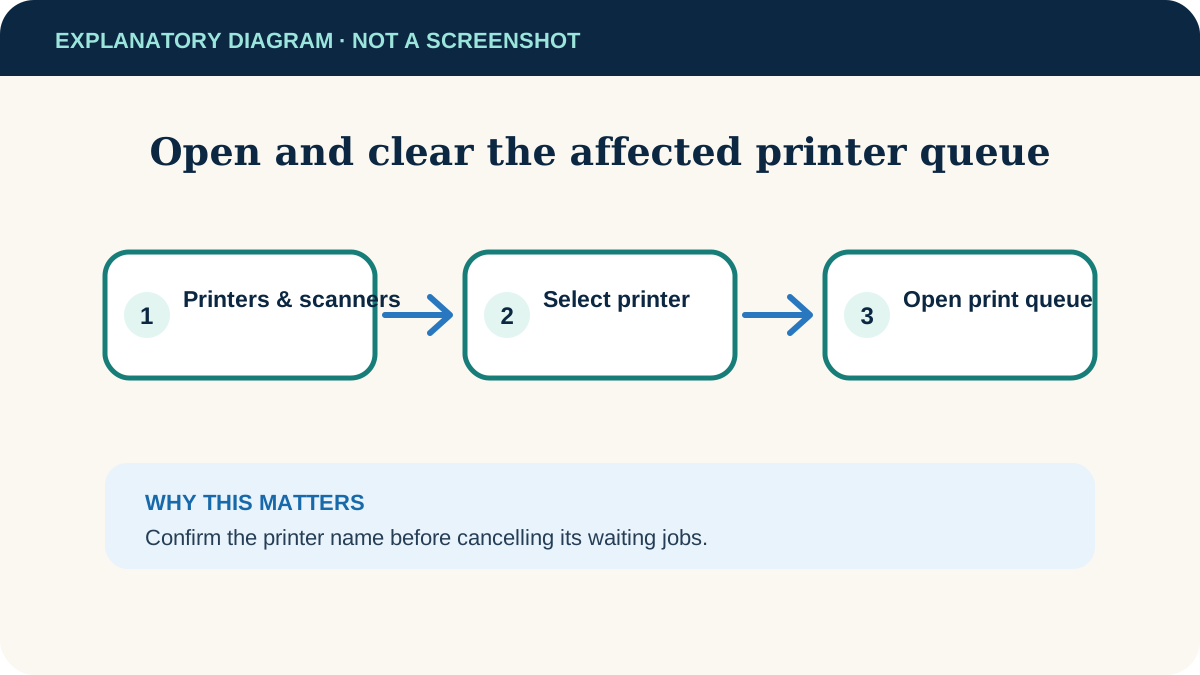
- 1
Open the printer
Go to Start → Settings → Bluetooth & devices → Printers & scanners and select the affected printer.
- 2
Open its queue
Select Open print queue. Confirm the listed document names belong to the printer you intend to reset.
- 3
Cancel waiting jobs
Right-click each job and choose Cancel, or use the queue menu’s cancel-all option if present. Wait a minute for the list to clear.
- 4
Restart and test once
Restart the printer and computer, then print a one-page test from a simple app. Repeatedly pressing Print only creates more queued copies.
Restart the Print Spooler service
The spooler is the Windows service that manages print jobs. Microsoft’s current guidance recommends restarting it when jobs freeze or the printer becomes unresponsive.
- 1
Open Services
Press Windows key + R, enter services.msc and press Enter.
- 2
Locate Print Spooler
Find Print Spooler in the list. Check that you selected that exact service.
- 3
Restart it
Right-click Print Spooler and select Restart. If Restart is unavailable, choose Start if the service is stopped.
- 4
Try the test again
Return to the queue and send one page. If it prints, reopen the original document and submit it once.
Use the deeper queue reset only if jobs remain
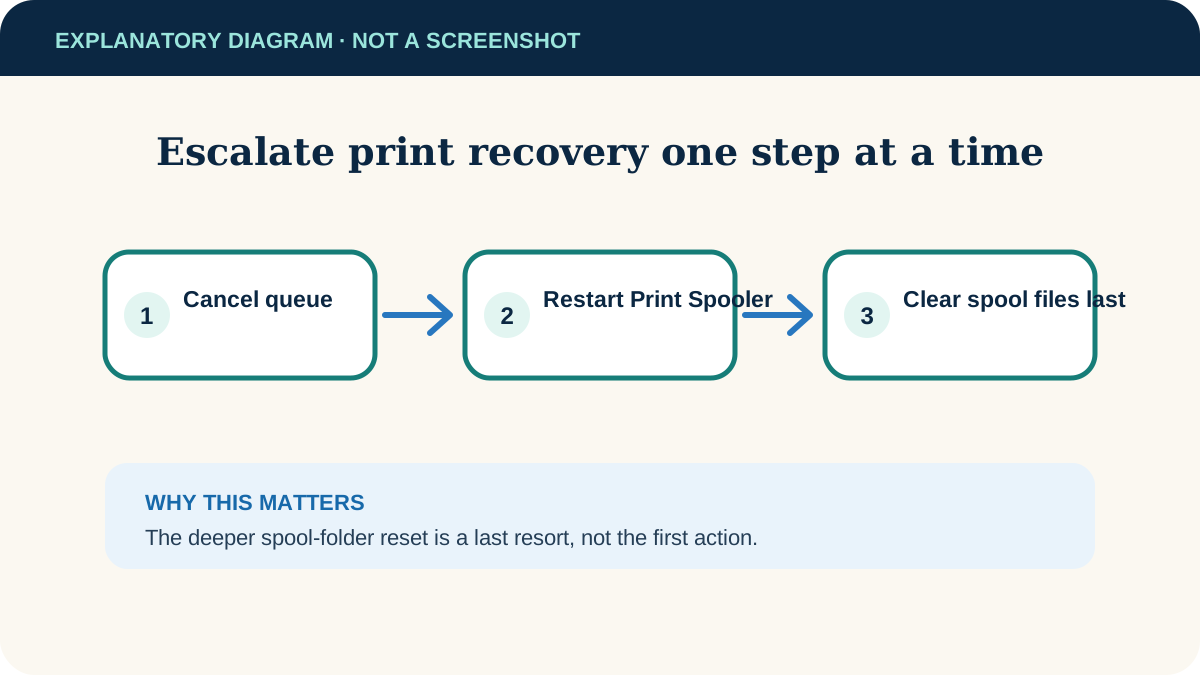
- 1
Stop the service
In Services, double-click Print Spooler, choose Stop and select OK.
- 2
Open the spool folder
In taskbar search, enter %WINDIR%\System32\spool\PRINTERS and open that location. Administrator approval may be required.
- 3
Delete only queued spool files
Delete the files inside the PRINTERS folder, not the folder itself and nothing from neighbouring system folders.
- 4
Start the service again
Return to Services, open Print Spooler, choose Start, set Startup type to Automatic if needed, and select OK.
The printer shows Offline
Use Windows printer troubleshooting and confirm its network address or connection. A cleared queue will not correct a broken connection.
Jobs fail only from one app
Try printing a simple page from Notepad. If that works, update or repair the problem app and check its document-specific print settings.
The spooler keeps stopping
Remove obsolete or duplicate printer drivers only after identifying them, then install the current driver from the printer manufacturer or Windows Update.
It is a work or school PC
A managed print server or policy may control the queue. Stop before removing drivers and contact the administrator with the printer name and error.
Useful next steps
These related tasks often come before or after this one:
- Save the Word document as a PDF first when you need a stable document copy before retrying the print job.
- Combine PDFs in the correct page order before printing a packet assembled from several files.
Official sources
These instructions were checked against the following first-party documentation on October 12, 2026.