Change the Default App for a File Type in Windows 11
Choose which installed app opens one file type in Windows 11 without changing unrelated formats or converting the file.

On this page
Choose the file extension in Settings, then select its default app
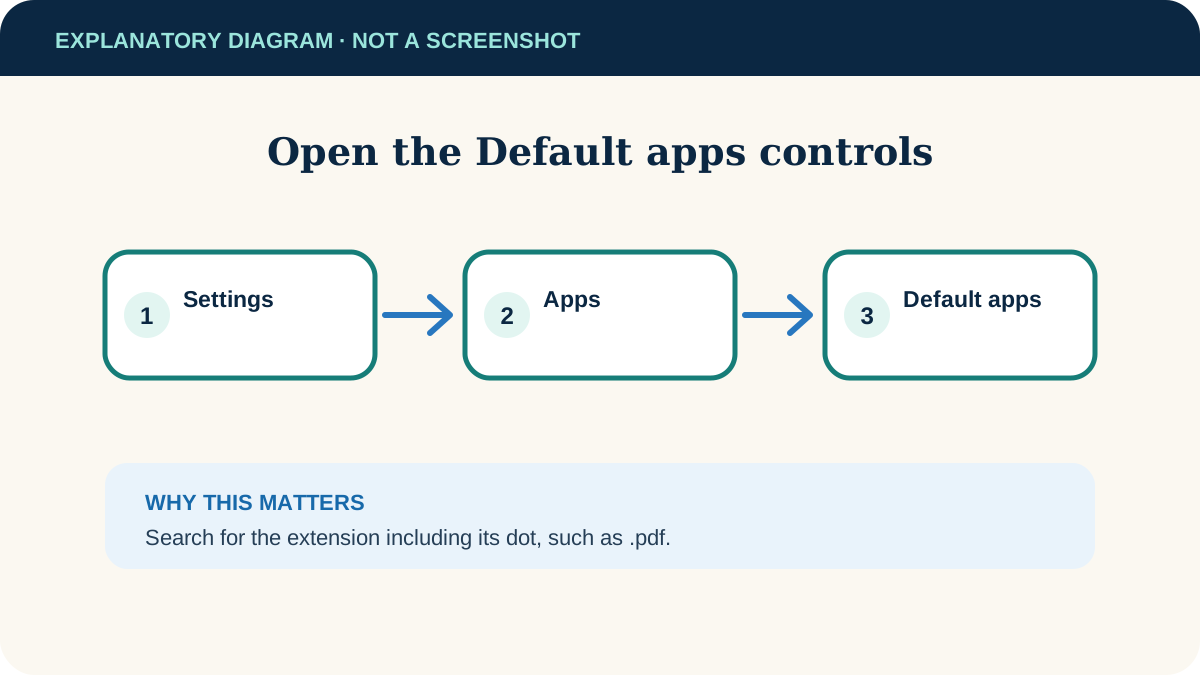
Open Settings → Apps → Default apps. Search for an extension such as .pdf, select the current result, choose an installed app and confirm. That app becomes the default for that file type.
Windows 11 and apps already installed for the file type or link protocol.
Researched from official documentation; not independently lab-tested on every device. In-step visuals are labelled explanatory diagrams, not Windows screenshots.
Set the default for one file type
- 1
Identify the extension
If it is hidden, first show file name extensions in Windows 11.
- 2
Open Default apps
Go to Start → Settings → Apps → Default apps.
- 3
Search the extension
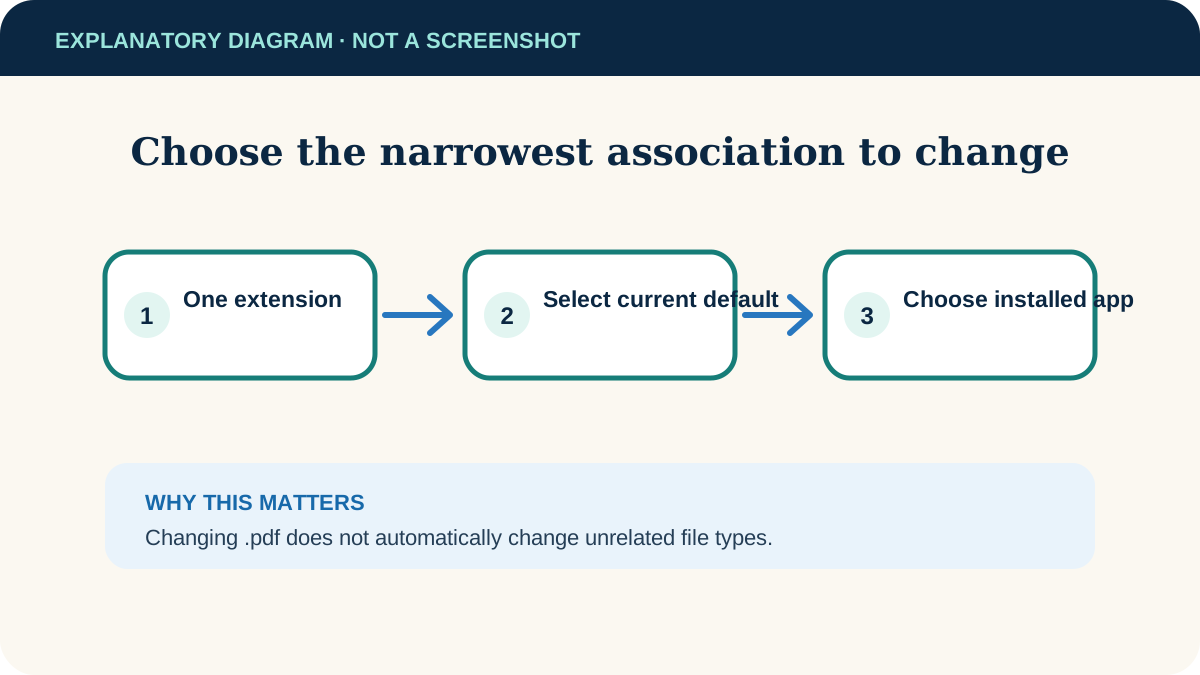
Enter the extension including its dot, such as .pdf or .jpg, and select the matching result.
- 4
Choose the app
Select the current default, choose the app you want from the available list and confirm the change.
- 5
Test one file
Open a file with that extension and confirm it opens in the selected app.
Review all defaults assigned to one app
On the Default apps page, search for and select an installed app. Windows lists the file types and link types it can handle. Change only the entries you recognise; setting every association can produce surprising results.
Change or reverse the default later
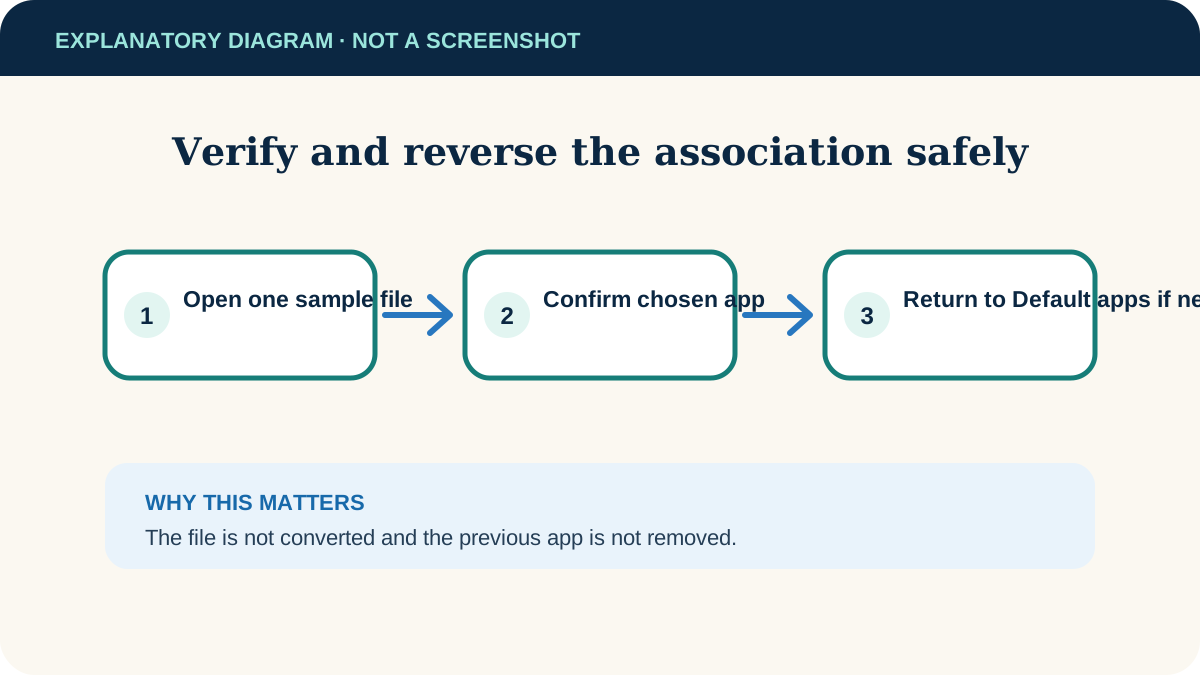
Return to Settings → Apps → Default apps, search the same extension and select a different installed app. Windows does not need a separate reset step for one association: choosing the replacement becomes the new default.
If the app is missing or the change does not stick
The app is not offered
Confirm it is installed and supports that format. Open the app once, update it, then return to Default apps.
Windows recommends another app
Read the prompt and choose the option that confirms your intended app. Labels can change between Windows releases.
The file still opens elsewhere
Check that its actual extension matches the one you changed, then close and reopen File Explorer or the calling app.
The control is locked
A managed PC may enforce defaults. Contact the administrator; do not attempt to bypass policy.
Useful next steps
These related tasks often come before or after this one:
- Show File Name Extensions in Windows 11 for the next related task.
- Save a Document as PDF with Built-In Options for the next related task.
Official sources
These instructions were checked against the following first-party documentation on October 12, 2026.