Change Chrome’s Download Folder—or Ask Every Time
Set a new default download location in desktop Chrome, enable the save-location prompt and understand what happens to existing downloads.
On this page
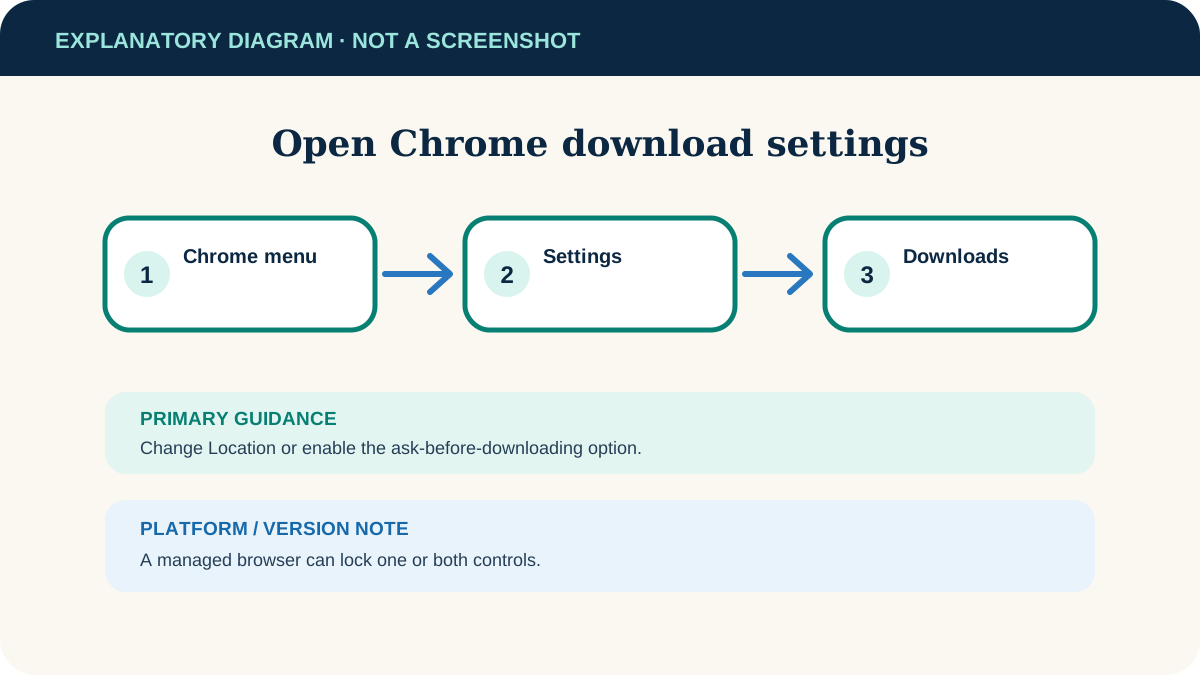
Open Chrome Settings → Downloads and change Location
On a computer, open Chrome’s menu, choose Settings → Downloads, then select Change beside Location. Choose a writable folder. Alternatively, enable Ask where to save each file before downloading to decide file by file.
Desktop Google Chrome on Windows, macOS and Linux. Android Chrome uses the device’s download handling and offers different controls.
Researched from official browser documentation; not independently tested across every browser version or managed configuration. In-step visuals are labelled explanatory diagrams, not browser screenshots.
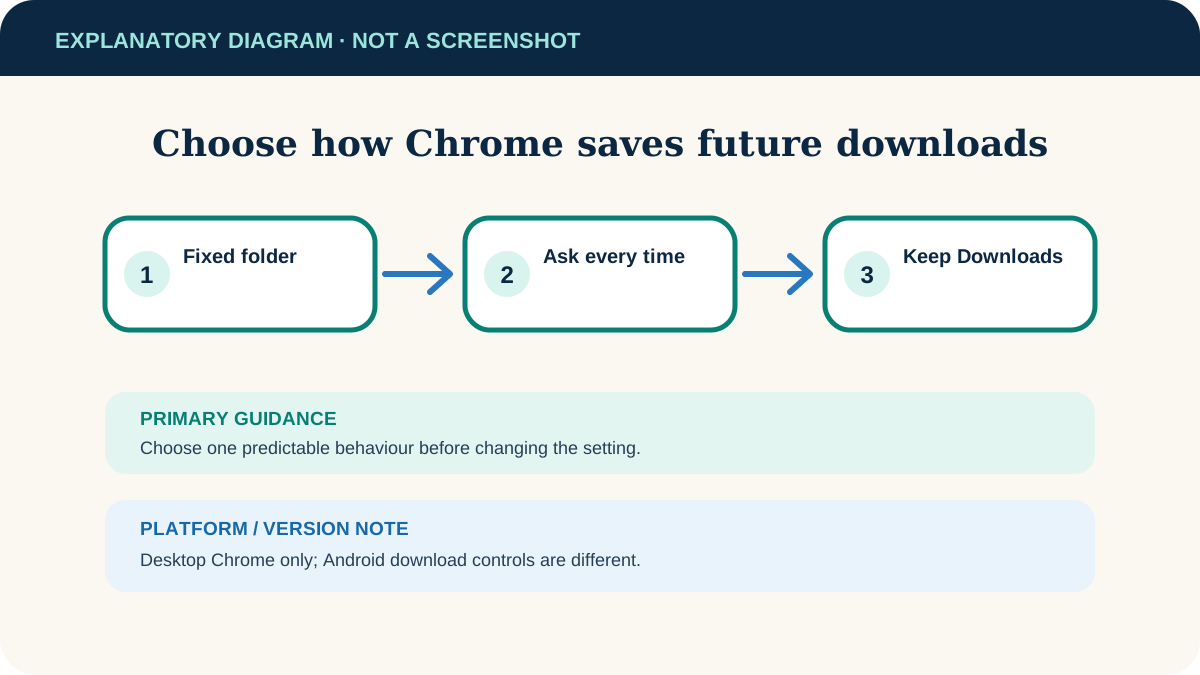
Choose a fixed folder or a prompt
Use one fixed folder
Best when you want automatic downloads to land in a predictable local folder. Create the folder first and make sure your account can write to it.
Ask for every download
Best when files belong to different projects or drives. It adds one decision to each download but avoids a cluttered catch-all folder.
Keep the default
Chrome normally uses the operating system Downloads folder. This is often the easiest choice if you periodically organise that folder.
Change Chrome’s download setting
- 1
Open Downloads settings
Select the three-dot menu in Chrome, choose Settings, then Downloads. You can also type chrome://settings/downloads in the address bar.
- 2
Set a default location
Beside Location, select Change. Choose a folder and confirm it. The next ordinary download should use that folder.
- 3
Or enable the prompt
Turn on Ask where to save each file before downloading. Chrome will present a save dialog for each file instead of silently using one location.
- 4
Run a harmless check
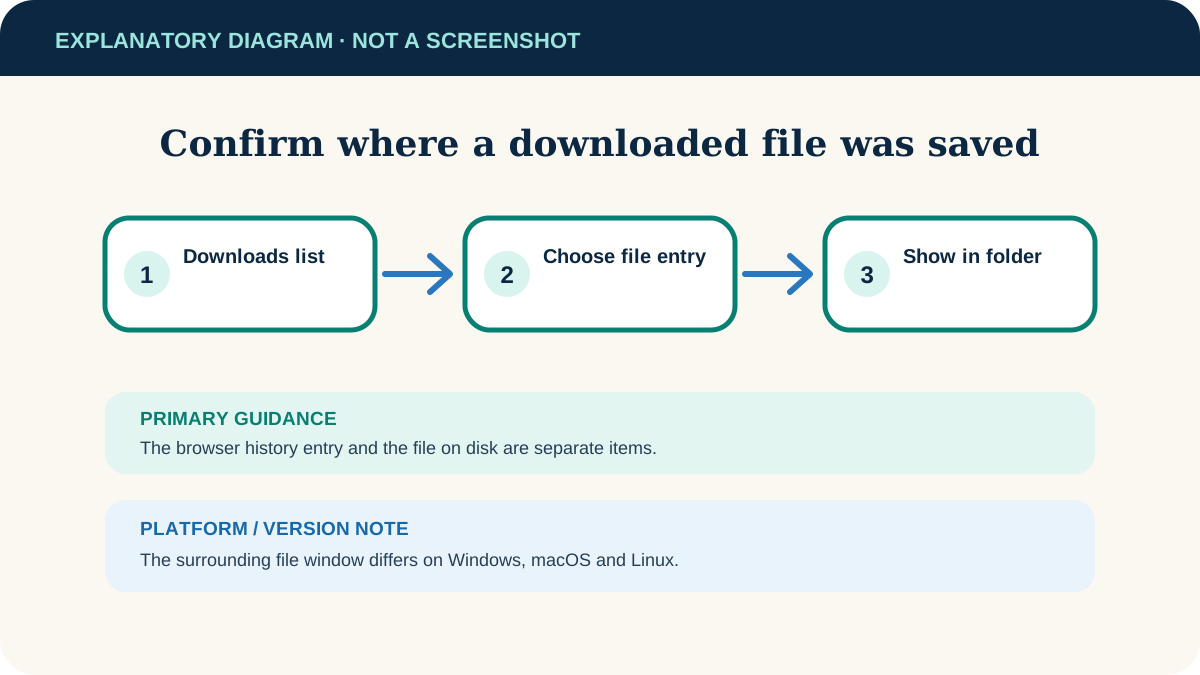
Download a small file from a trusted site, then use the download tray’s Show in folder action to confirm the destination. Delete the test file if it is not needed.
Find a file you already downloaded
Open Chrome’s menu and choose Downloads. Select a file name to open it, or point to the entry and use Show in folder. Removing the entry from Chrome’s download history does not remove the file from the computer.
- Windows 10 and later default: Users/<your account>/Downloads.
- macOS default: /Users/<your account>/Downloads.
- Linux default: /home/<your account>/Downloads.
- Managed browser: a workplace or school policy can lock the location or download behaviour.
If Chrome ignores the folder or a download fails
The old folder is still used
Confirm the setting in the correct Chrome profile. A shortcut or another browser may be handling the download. Test with Show in folder.
The chosen drive is disconnected
Reconnect it or change Location to an available local folder. Chrome cannot save to an offline removable or network destination.
A site downloads many files
Chrome controls related automatic downloads separately under Privacy and security → Site Settings → Additional permissions → Automatic downloads. Allow only a site you trust.
A file opens automatically
In recent download history, right-click that file type and turn off “Always open files of this type” when the option is available.
Chrome warns about the file
Do not keep an executable merely to finish the steps. Confirm the source, expected filename and publisher; discard it if uncertain.
Useful next steps
These related tasks often come before or after this one:
- Find Chrome downloads on Android if the missing download was saved on a phone or tablet instead.
- Find large Windows files and move them to USB when an existing Downloads folder is already using too much disk space.
Official sources
These instructions were checked against the following first-party documentation on October 12, 2026.