Allow Pop-ups for One Trusted Site in Chrome
Permit a legitimate sign-in, payment or document window for one site without weakening Chrome’s default pop-up blocking everywhere.
On this page
Use the blocked-pop-up icon and allow only that site
Visit the trusted site, trigger the blocked window, select the Pop-up blocked icon in the address bar, choose the wanted link and select Always allow pop-ups and redirects from this site → Done. Leave Chrome’s overall default set to block.
Desktop Chrome on Windows, macOS, Linux and ChromeOS. Managed devices may prevent this change.
Researched from official browser documentation; not independently tested across every browser version or managed configuration. In-step visuals are labelled explanatory diagrams, not browser screenshots.
Decide whether you need one window or ongoing permission
Chrome blocks pop-ups by default. When a legitimate site tries to open one, the address bar shows a blocked-pop-up indicator. Start there rather than switching off blocking for every website.
- Open once: select the specific blocked link without storing a broad permission when you only need it for this visit.
- Always allow this site: useful for a trusted banking, identity, document or business system that consistently opens a required second window.
- Do not allow: if the pop-up appeared unexpectedly, asks you to call a number, install software or claims your device is infected.
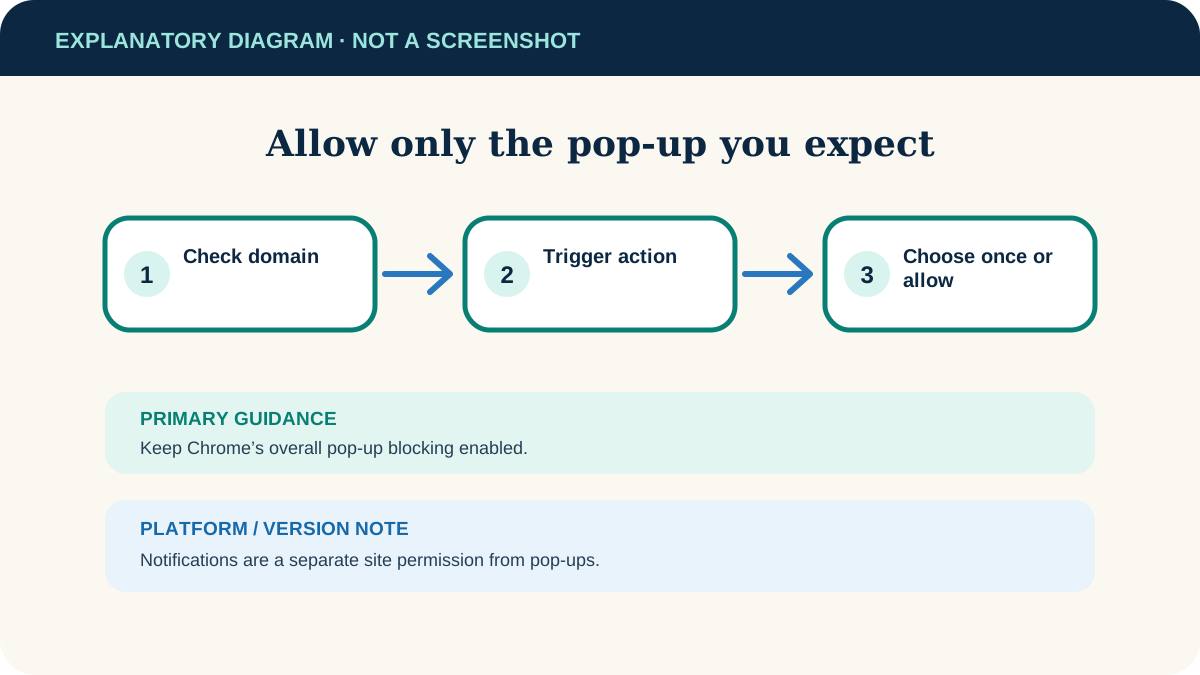
Allow pop-ups from the current site
- 1
Verify the address
Read the domain in the address bar. Look for subtle misspellings or an unfamiliar subdomain before granting permission.
- 2
Trigger the expected action
Select the site’s sign-in, print, payment or document button so Chrome displays the blocked-pop-up indicator.
- 3
Open the blocked-pop-up control
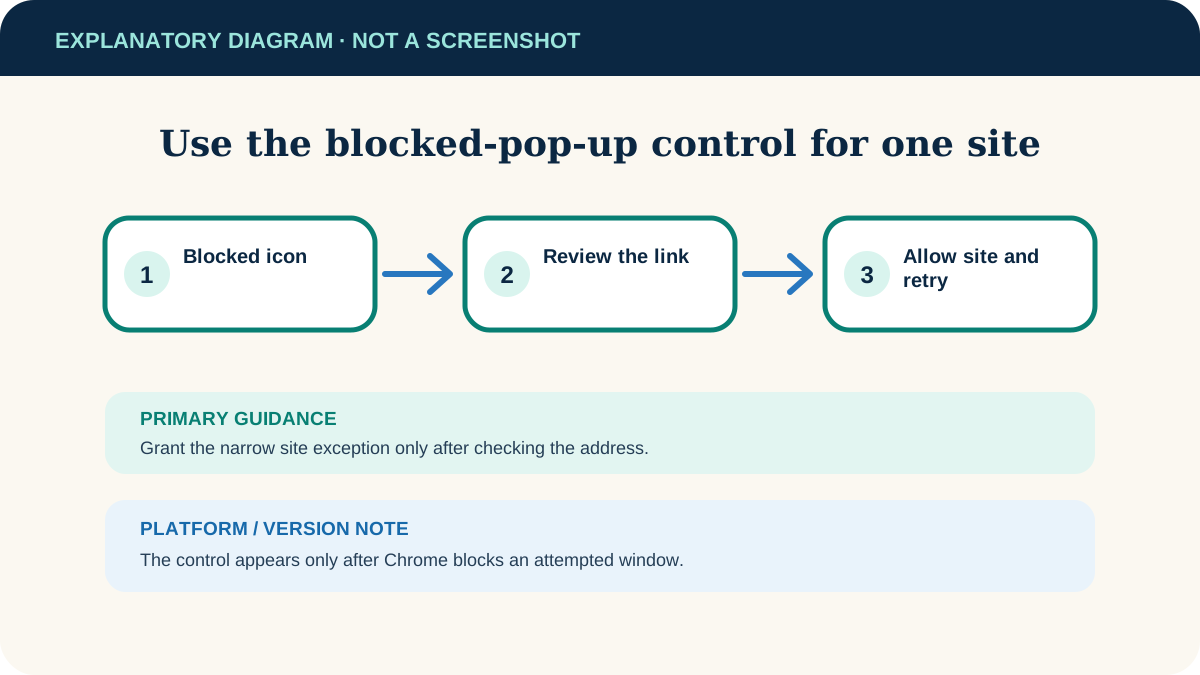
Select Pop-up blocked in the address bar. Choose the specific link if you need it once.
- 4
Save a site exception if required
Select Always allow pop-ups and redirects from [site], then Done. Retry the action.
- 5
Close the exception later
When the workflow is finished for good, remove the site from Chrome’s allowed list using the steps below.
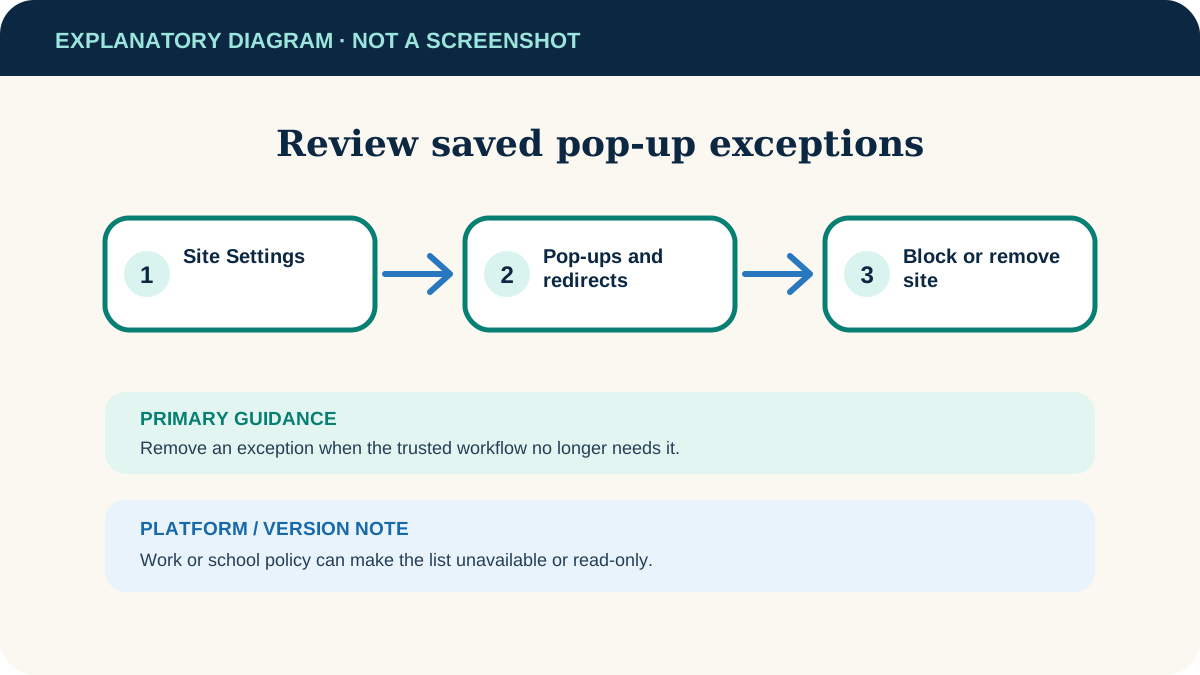
Review or remove saved exceptions
- 1
Open Site Settings
Open Chrome’s menu and choose Settings → Privacy and security → Site Settings.
- 2
Open Pop-ups and redirects
Select Pop-ups and redirects. Keep the default on the blocked/not-allowed option unless you have a specific reason to change it.
- 3
Find the allowed site
Under the allowed list, locate the exact domain. Select its menu and choose Block or Remove when it no longer needs access.
- 4
Add by address only when necessary
Chrome also lets you add a site manually. Enter the narrowest exact address you need; a broad wildcard covers more pages and subdomains.
If unwanted windows still appear
They appear as system-style alerts
They may be browser notifications rather than pop-ups. Open the site, select the site-information control near the address and set Notifications to Block.
New tabs open on many sites
Review recently added Chrome extensions and remove ones you do not recognise. Use Chrome’s Safety Check and scan the computer with its trusted security tools.
Your homepage or search changes
This can indicate unwanted software or a browser setting changed without permission. Follow Chrome’s official unwanted-ads and malware guidance.
The setting is locked
A work or school administrator may enforce browser policy. Do not try to bypass it; ask the administrator to approve the required site.
A legitimate window is still blocked
Reload the site after saving the exception and trigger the action again. Also check whether the browser is blocking third-party cookies or another required site permission.
Useful next steps
These related tasks often come before or after this one:
- Clear one site’s Firefox data if the same service is failing in Firefox because its stored data is stale.
- Choose where Chrome saves downloaded files when the permitted pop-up starts a file download you need to locate later.
Official sources
These instructions were checked against the following first-party documentation on October 12, 2026.