Clear Firefox Cookies and Cache for One Problem Site
Reset one website’s stored data in Firefox without wiping every login, then choose cache-only or all-site cleanup only when necessary.
On this page
Clear data for the current site before clearing everything
Open the problem site in Firefox, select the padlock beside its address and choose Clear cookies and site data. Reload the page and sign in again if required. For a different site, use Settings → Privacy & Security → Cookies and Site Data → Manage Data.
Current desktop Firefox on Windows, macOS and Linux. Menu labels can differ slightly between releases.
Researched from official browser documentation; not independently tested across every browser version or managed configuration. In-step visuals are labelled explanatory diagrams, not browser screenshots.
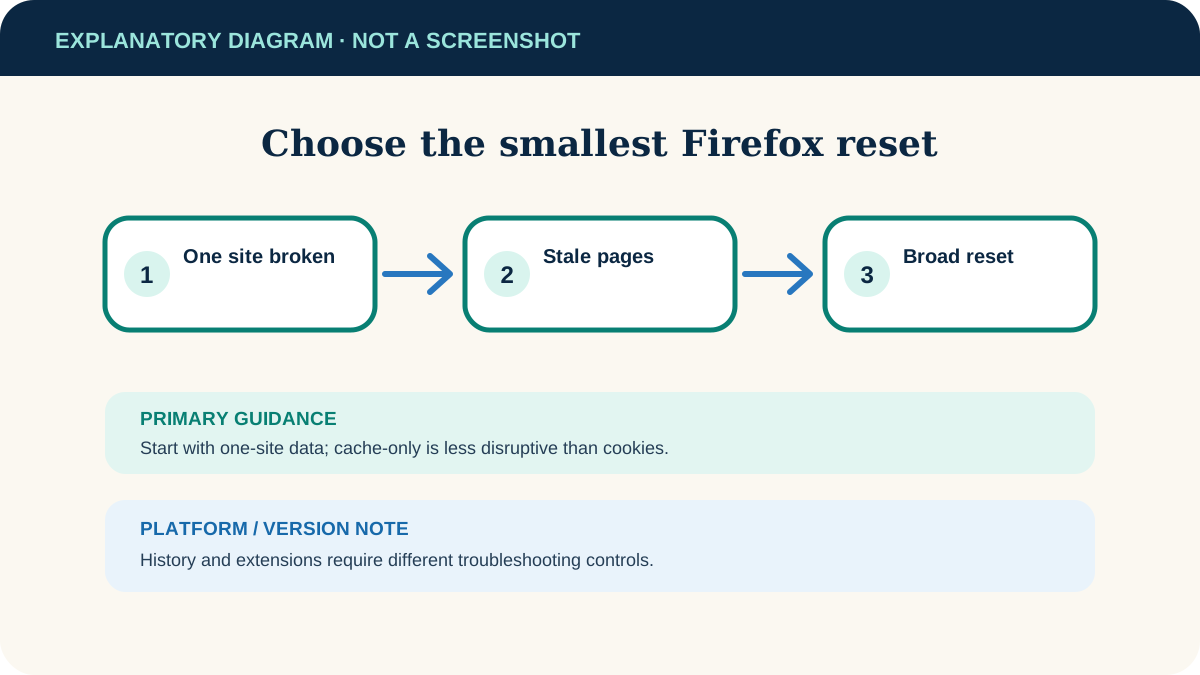
Choose the smallest useful reset
One site is broken
Clear that site’s cookies and data. This minimises disruption to other logins and preferences.
Pages look stale everywhere
Clear temporary cached files while leaving cookies unselected if you want to preserve site logins.
You need a broad privacy reset
Clear cookies, site data and history for the chosen time range, understanding that many sites may sign you out.
The problem is an extension
A data clear may not help. Test Firefox Troubleshoot Mode or disable the relevant extension after reviewing what it does.
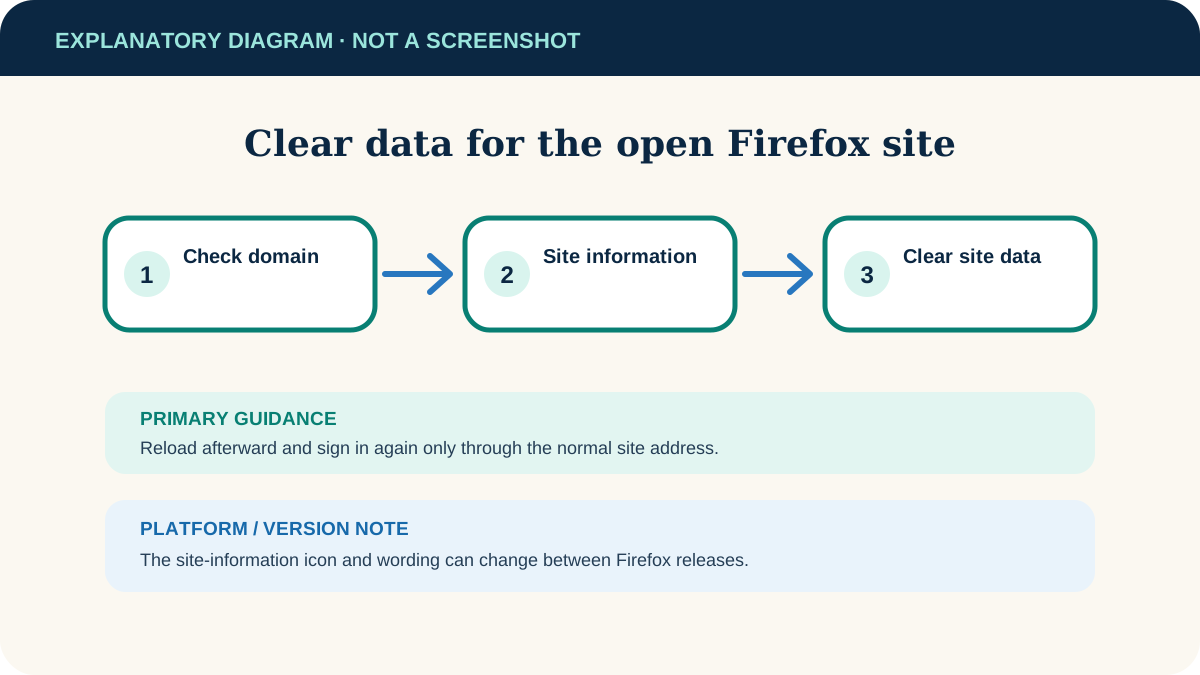
Clear data for the site you are viewing
- 1
Confirm the address
Open the affected page and make sure it is the intended domain. A service may use a separate sign-in domain that stores its own data.
- 2
Open site information
Select the padlock or site-information control at the left side of the address bar.
- 3
Clear the stored site data
Choose Clear cookies and site data and confirm. Firefox removes the data associated with that site.
- 4
Reload and sign in
Reload the page. Sign in again if requested and repeat the action that previously failed.
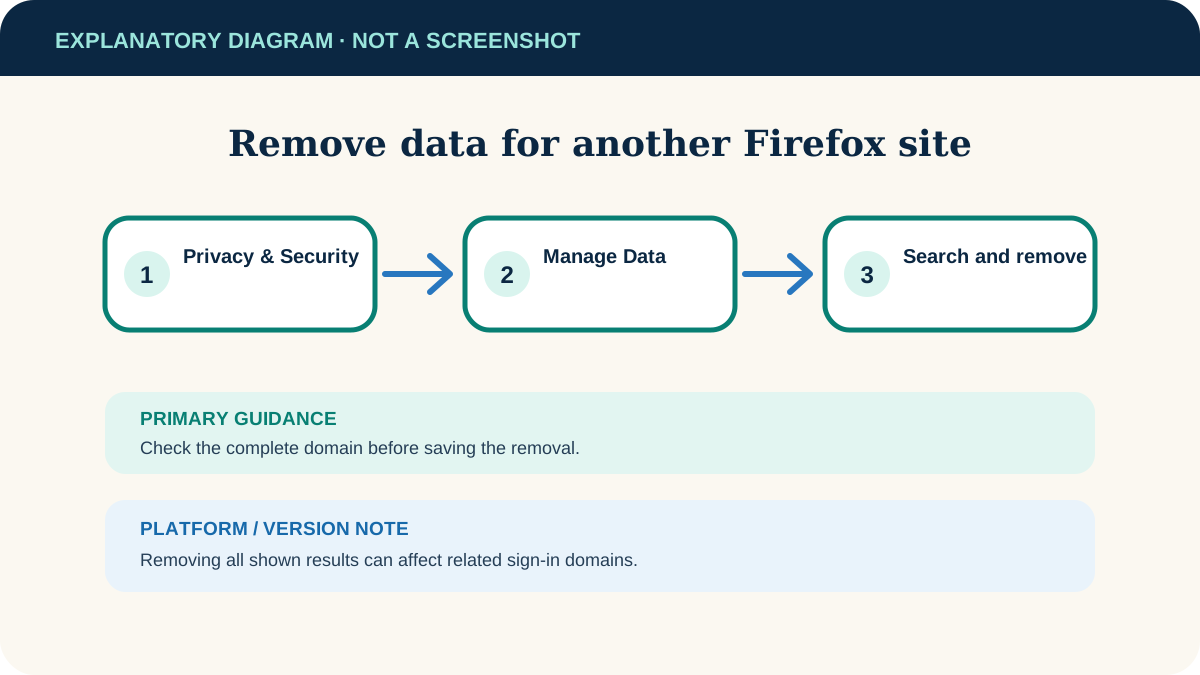
Remove data for a site that is not open
- 1
Open privacy settings
Open Firefox’s menu, choose Settings, then Privacy & Security.
- 2
Find Cookies and Site Data
Select Manage Data. A searchable list of stored sites opens.
- 3
Search the domain
Enter part of the website’s domain. Check the results carefully so you do not remove a similarly named service.
- 4
Remove and save
Choose Remove Selected or Remove All Shown, select Save Changes, then confirm.
Clear cache or all browsing data only when needed
In Settings → Privacy & Security → Cookies and Site Data, the Clear Data control can remove cookies/site data and temporary cached files. Select only the category that matches your goal.
- Temporary cached files and pages: removes stored page resources that Firefox can fetch again. This is the less disruptive broad reset.
- Cookies and site data: removes login status, site preferences and other local site storage for the selected scope.
- Time range: use a shorter range when the problem started recently; Everything is the broadest option.
- History: is controlled separately in broader browsing-data dialogs. Do not select it unless removing history is part of your goal.
The site is still broken
Try a private window. If it works there, an extension or remaining site state may be involved. Check Firefox’s Enhanced Tracking Protection indicator and the site’s required permissions.
The site immediately logs out again
Check whether Firefox or an extension is configured to delete cookies on close, or whether the site is blocked from storing them.
Only one account has the problem
Use the site’s own sign-out and account-switch controls. A server-side account issue will not necessarily be fixed by clearing local data.
Useful next steps
These related tasks often come before or after this one:
- Allow pop-ups for one trusted site in Chrome when the service opens a required sign-in or document window in Chrome.
- Change Chrome’s download folder if your next step is controlling where the site’s files are saved.
Official sources
These instructions were checked against the following first-party documentation on October 12, 2026.