Find Downloaded Files on Android—and Know Where Apps Hide Them
Use the Files app, recent files and categories to locate downloads, then handle app-specific offline media that does not appear in the Downloads folder.
On this page
Start in Files, then check the app that created the download
Open your phone’s Files app. Check Recent, Downloads or the relevant category, then sort by Date. If the item is offline media from a streaming, book or map app, open that app’s Downloads or Library area because it may not expose the file in shared storage.
Android phones and tablets. The file manager may be called Files, My Files or Files by Google depending on the manufacturer.
Researched from official documentation; not independently tested across Android manufacturers. In-step visuals are labelled explanatory diagrams, not Android screenshots.
Find ordinary downloads in the Files app
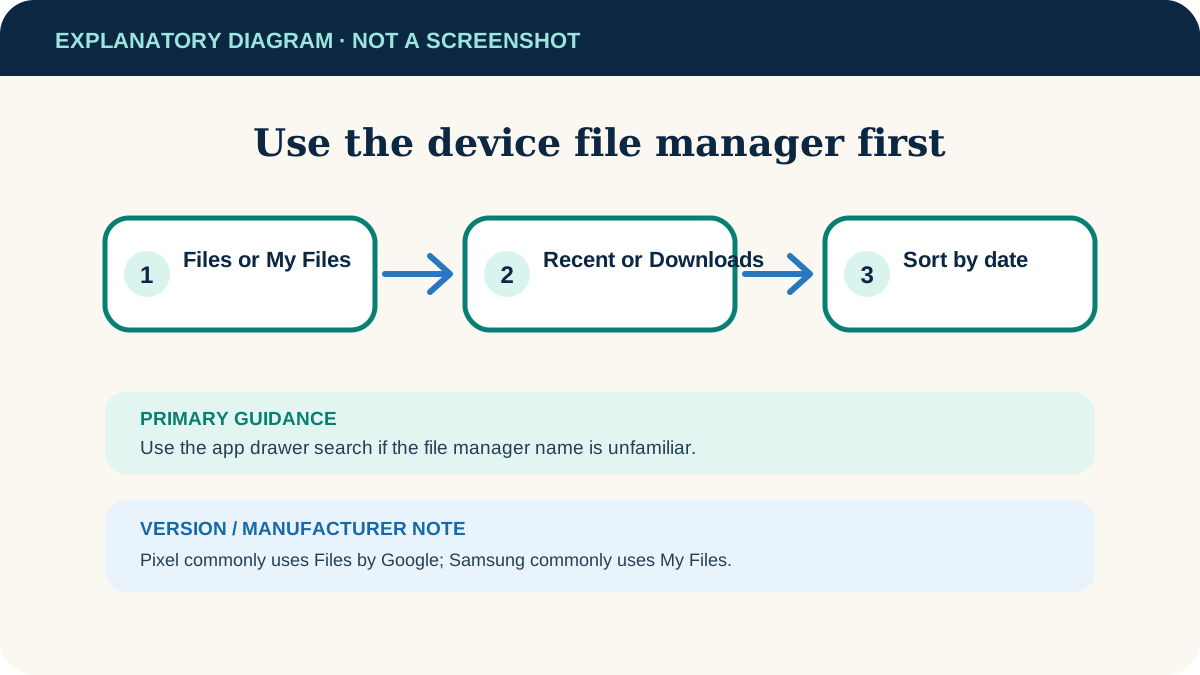
- 1
Open the file manager
Open Files, Files by Google or the manufacturer’s file app. If you cannot find it, search the app drawer for “files.”
- 2
Check Recent
Recently added, downloaded and modified items often appear near the top. Use this when you know roughly when the download finished.
- 3
Open Downloads or a category
Choose Downloads for browser and email saves, or use Documents, Images, Video or Audio when the file type is clearer than its location.
- 4
Sort the list
Use the menu to sort by Date, Name or Size. Date is useful for a new file; Size helps distinguish a full document from a tiny failed download.
- 5
Open or share it
Tap to open. Touch and hold for actions such as Share, Move or file details. If Android asks which app to use, select one that supports the file type.
Use the browser’s download list as a second route
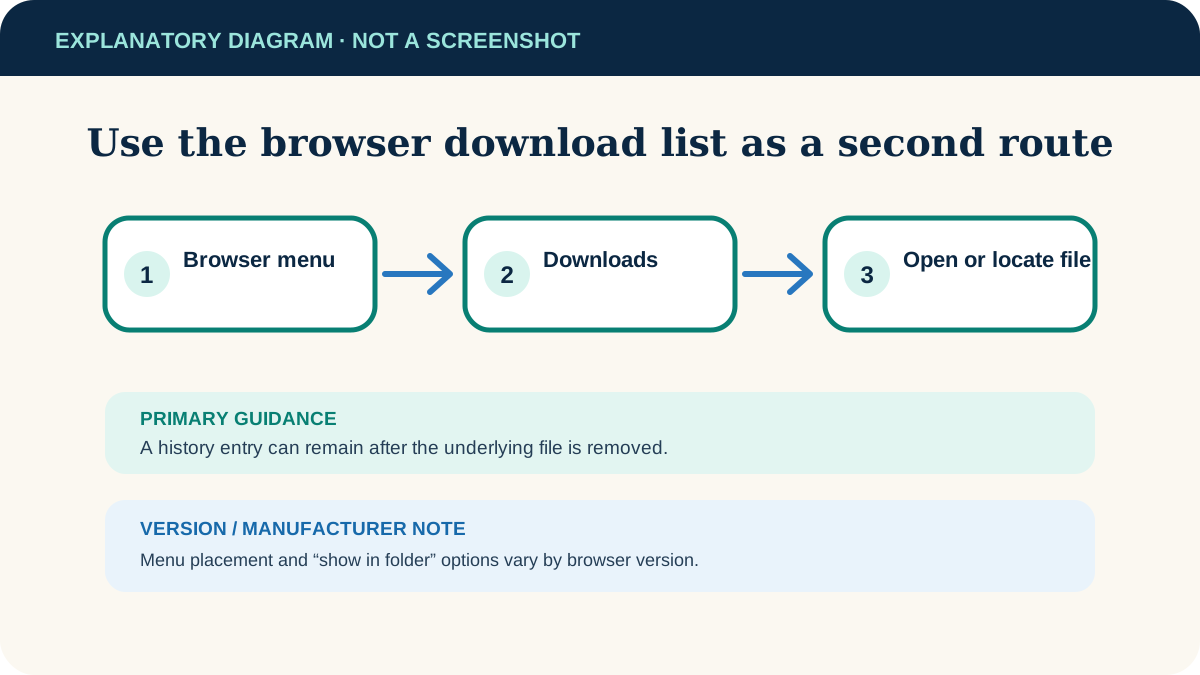
A browser usually keeps a history entry that can lead back to a saved file. In Chrome, open the menu and choose Downloads. Tap the file to open it or use its menu to locate or share it.
Why some downloads appear only inside an app
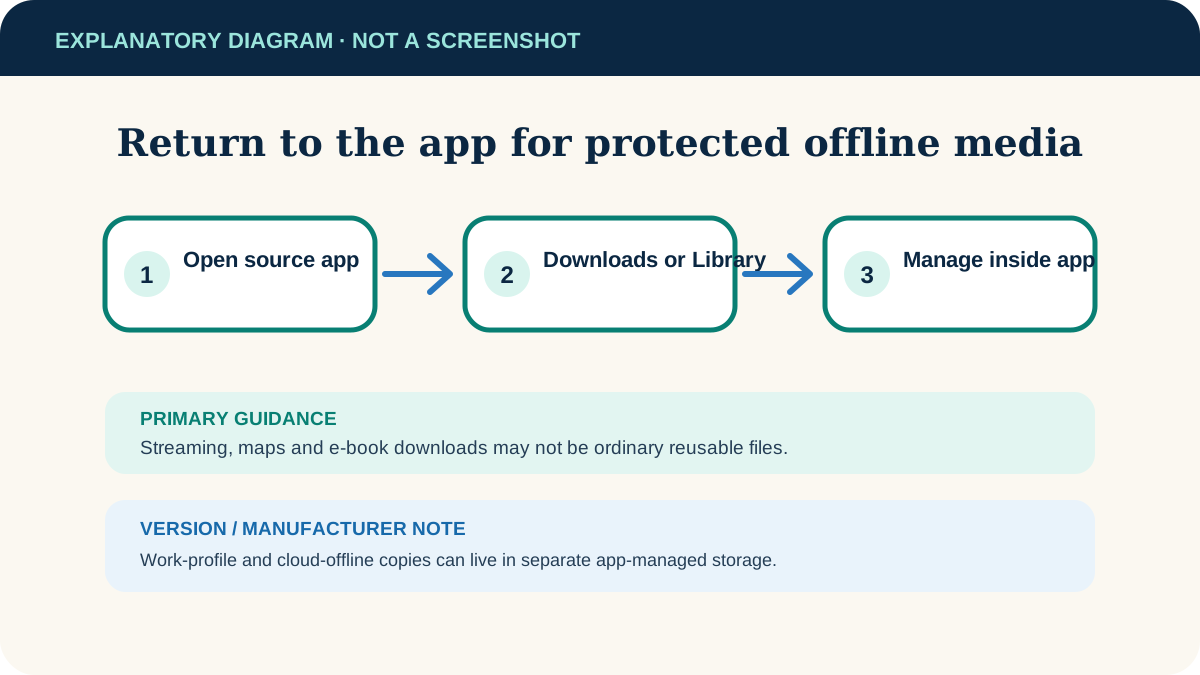
- Streaming video and music: encrypted offline media is normally managed from that app’s Downloads or Library screen.
- Maps: offline areas are managed inside the map app, not as reusable map files in Downloads.
- E-books and podcasts: use the app’s library or storage settings; the file may be stored in app-private space.
- Cloud drive apps: “available offline” can mean an app-managed local copy rather than a visible file in the Downloads folder.
- Messaging attachments: saving or downloading within the chat may place media in an app-named folder or keep it private.
Google’s Android help specifically advises returning to the app where media was downloaded when ordinary file browsing does not reveal it.
If the file is still missing
The download may have failed
Check the browser or app download list for a failed, paused or zero-byte item. Retry from the original trusted source rather than downloading from a random mirror.
The name is unfamiliar
Sort by date and use file details to inspect its extension and location. A website may supply a generated name that differs from the document title.
You used a work profile
Personal and work-profile storage are separated. Open the work-profile version of the file or browser app and follow your organisation’s sharing policy.
The item was opened but not saved
An email or chat app may have displayed a temporary preview. Use its explicit Download, Save to device or Share action to create a durable copy.
You need the file on a PC
Once located, share it through a trusted service or use USB File transfer. Verify the computer copy before deleting the phone version.
Useful next steps
These related tasks often come before or after this one:
- Copy those downloads to Windows by USB when you want a local computer backup.
- Reclaim Android storage without losing important files after you have identified which downloads are safe to remove.
Official sources
These instructions were checked against the following first-party documentation on October 12, 2026.