Transfer Files Between Android and Windows with a USB Cable
Switch the phone from charging to File transfer, copy files in File Explorer and troubleshoot cables or ports that do not carry data.
On this page
Unlock the phone and change the USB use to File transfer
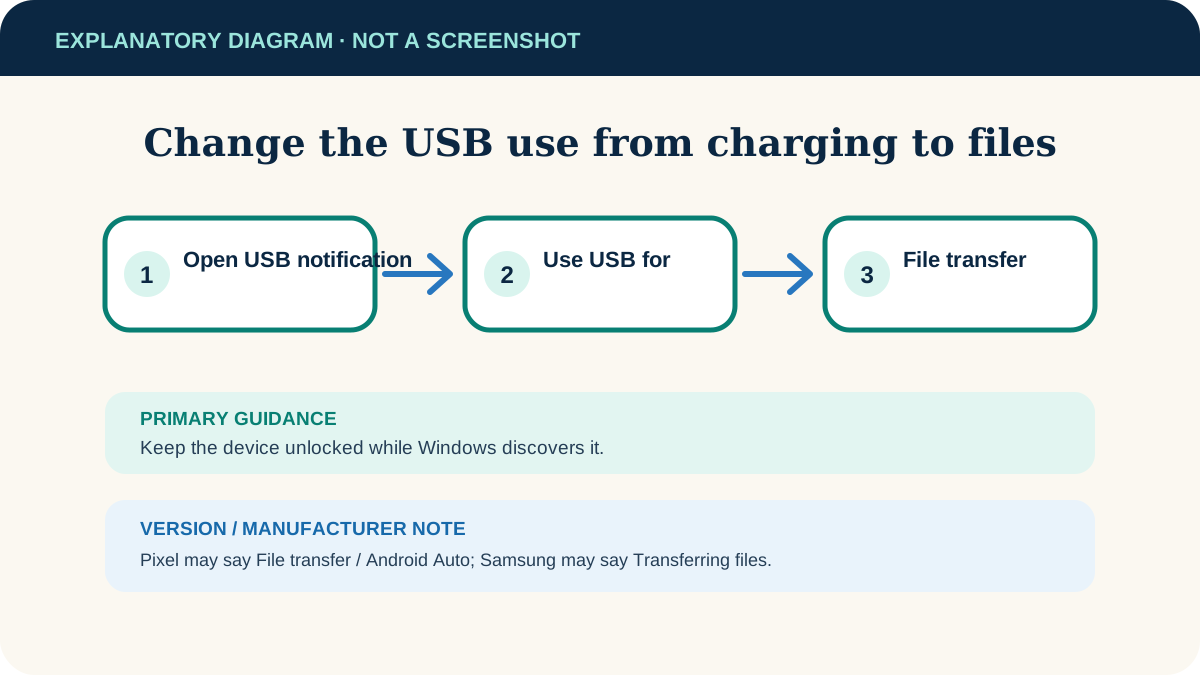
Connect the unlocked Android device with a data-capable USB cable. Tap the Charging this device via USB notification and choose File transfer. On Windows, open File Explorer, select the phone and copy files. Eject the device from Windows before unplugging.
Android phone or tablet and a Windows computer. Menu wording and folder layout vary by phone maker and Android version.
Researched from official documentation; not independently tested across Android manufacturers. In-step visuals are labelled explanatory diagrams, not Android screenshots.
Before you connect
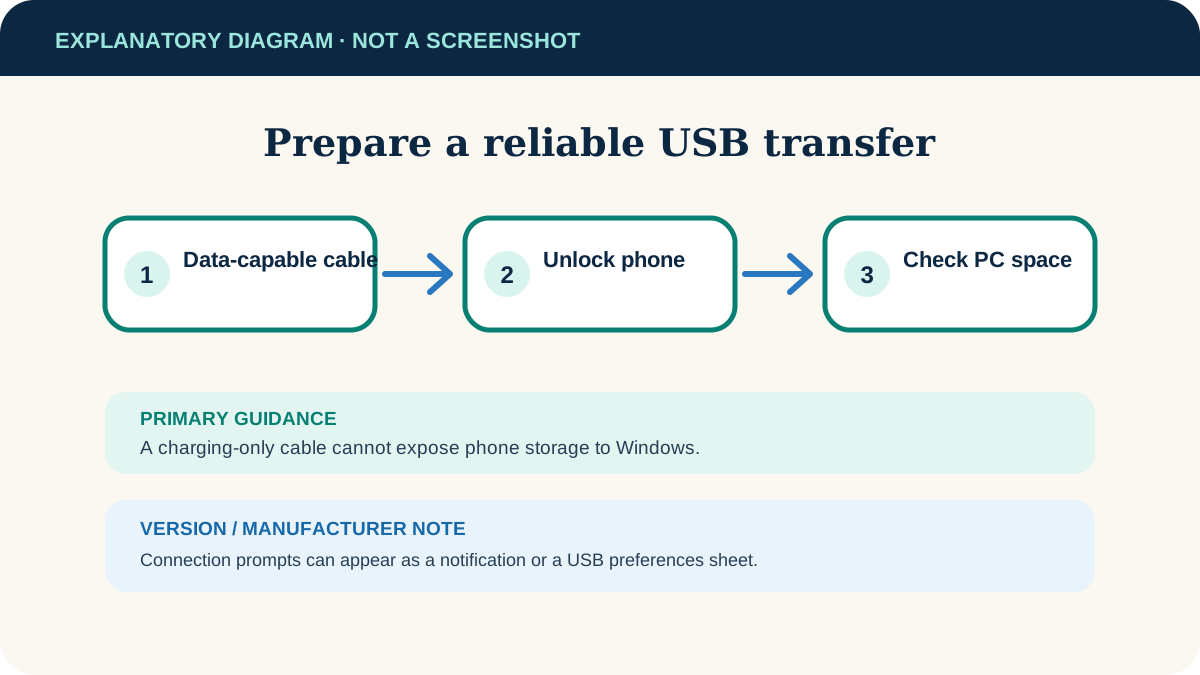
- Use a cable known to transfer data. Some inexpensive or bundled cables provide power only.
- Unlock the Android device and keep its screen available for the connection prompt.
- Save open files and make sure the Windows destination has enough space.
- For photos, know whether you want the DCIM/Camera originals, screenshots, messaging images or downloaded files; they may live in different folders.
Copy files over USB
- 1
Connect and unlock
Connect the device to the Windows computer. Unlock it after connection if needed.
- 2
Change the USB mode
Pull down notifications and tap Charging this device via USB or a similarly worded USB notification. Under “Use USB for,” choose File transfer.
- 3
Open the device in Windows
Open File Explorer and select the phone under This PC. Choose internal storage or the SD card if shown.
- 4
Find the source folder
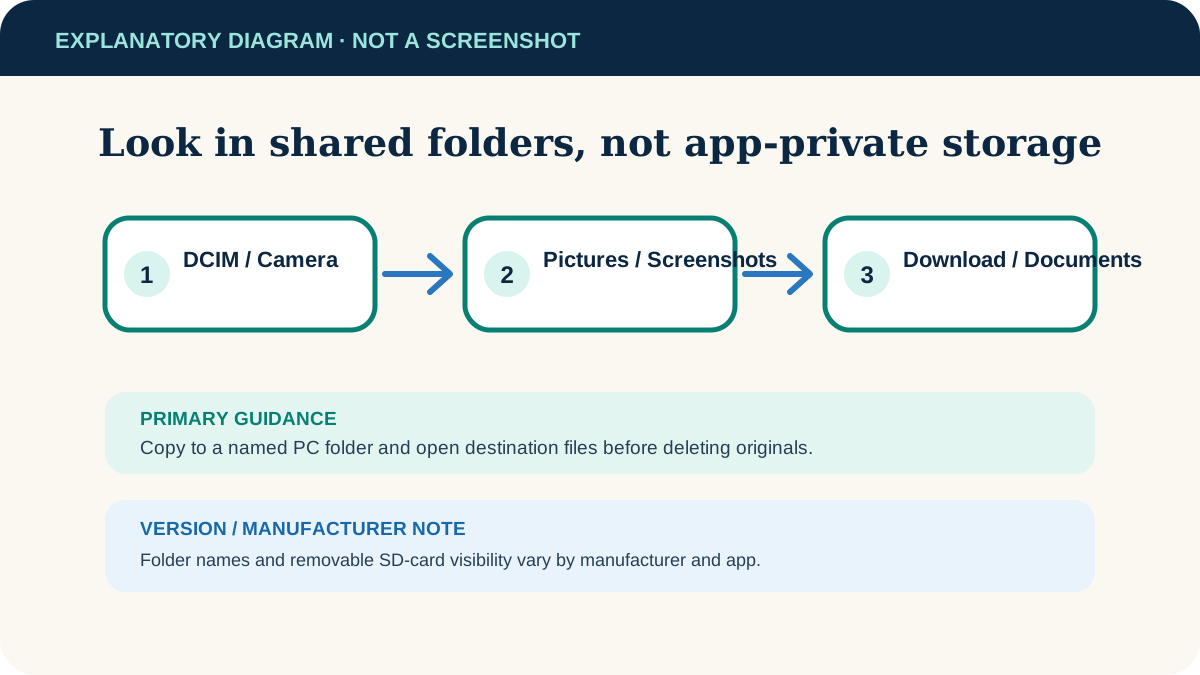
Common folders include DCIM/Camera for camera photos, Pictures/Screenshots, Download and Documents. Apps can use different locations.
- 5
Copy the files
Copy selected files to a named folder on the PC. For a PC-to-phone transfer, copy into a suitable user folder such as Documents or Download—not an Android system directory.
- 6
Verify and eject
Open several destination files. When all progress dialogs are finished, eject the device from Windows and then unplug the cable.
Understand what appears in File Explorer
USB File transfer exposes shared storage, not every piece of phone data. You should see ordinary photos, downloads and documents. You should not expect to browse passwords, protected app databases or all chat histories as files.
- Cloud-only files must be downloaded to the device or retrieved from the cloud service on the computer.
- Photo previews in an app do not guarantee the original is stored locally; check its info or download status.
- New-phone setup transfers are a different process and can include apps, settings and messages. A normal USB file copy does not reproduce a complete phone.
- Work-managed devices may restrict USB data transfer by policy.
If Windows sees only a charging phone
There is no USB notification
Unlock the phone, disconnect and reconnect it, then try another cable. A power-only cable is the most common simple explanation.
File transfer is selected but nothing opens
Open This PC manually, try another USB port and restart both devices. Windows should automatically detect supported new hardware.
The phone appears and disappears
Avoid loose adapters and unpowered hubs. Test the same phone and cable on another computer, or another device on the same PC port, to isolate the failing part.
A folder looks empty
Keep the phone unlocked, wait for thumbnails to load and confirm the files are locally stored. Check the app that created the file if it uses a private or cloud location.
USB remains unreliable
Use a Google Account service or Quick Share for Windows if both devices support it. For sensitive files, understand where the chosen service stores or transmits the data.
Useful next steps
These related tasks often come before or after this one:
- Locate downloaded files on Android when the item you want to copy is not in the folder you expected.
- Move large Windows files to USB storage if the copied phone files also need to be archived off the computer.
Official sources
These instructions were checked against the following first-party documentation on October 12, 2026.