Find Large Files in Windows 11 and Move Them to a USB Drive
Identify personal files taking up space, copy them to external storage, verify the copies and remove originals only when it is safe.
On this page
Sort a personal folder by size, copy first, and verify before deleting
In File Explorer, open a personal folder such as Videos or Downloads, switch to Details view and sort by Size. Copy chosen files to the external drive. Open several copies from the destination and compare the folder size or file count before removing the originals.
Windows 11 File Explorer and a writable USB flash drive, SD card or external drive.
Researched from official documentation; not independently lab-tested on every device. In-step visuals are labelled explanatory diagrams, not Windows screenshots.
Prepare and identify the external drive
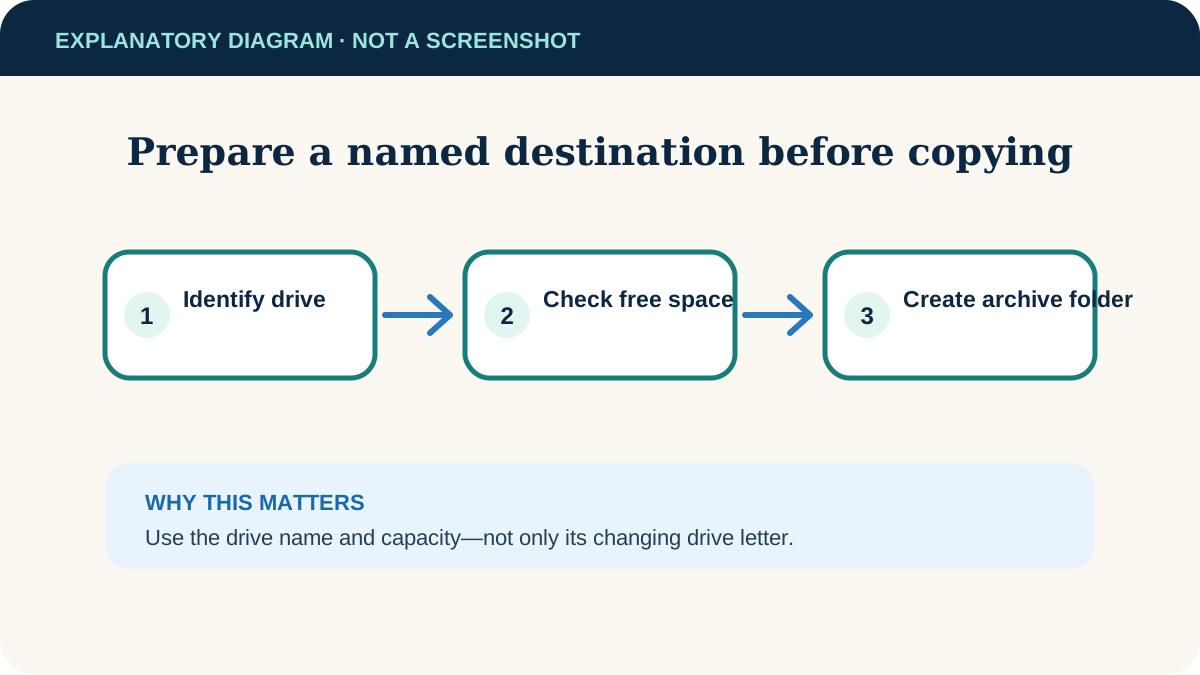
- 1
Connect the drive
Plug it directly into the computer when possible. Open File Explorer → This PC and identify it by its name and capacity—not only by a letter, because drive letters can change.
- 2
Check available space
Confirm the free-space figure is larger than the files you plan to copy. If Windows says the file is too large despite enough free space, the drive may use FAT32, which has a single-file size limit.
- 3
Create a clear destination
Make a folder such as PC archive 2026-10, then add subfolders for Videos, Pictures or Documents. A named destination is easier to audit and restore than a pile at the drive root.
Find large personal files
Microsoft recommends starting with personal libraries because videos, music, pictures, documents and Downloads commonly contain the largest user-created files. Open one folder at a time under This PC.
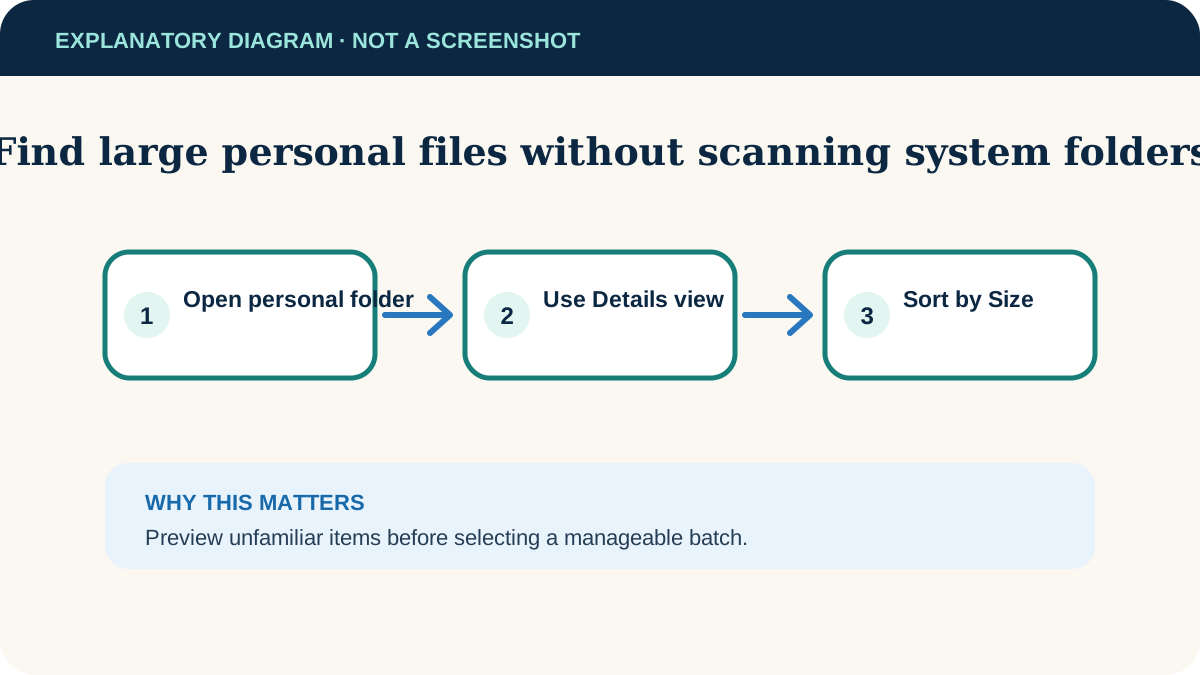
- 1
Use Details view
Choose View → Details. The Size and Date modified columns make it easier to understand what you are seeing.
- 2
Sort by size
Right-click an empty area and choose Sort by → Size, or select the Size column. If folders do not show useful sizes, open likely folders and repeat the sort inside them.
- 3
Preview before selecting
Open unfamiliar videos, images or archives. File names and age are clues, not proof that something is expendable.
- 4
Select a sensible batch
Copy a small group first. Very large transfers are easier to verify when split into named folders or date ranges.
Copy, verify, then remove originals
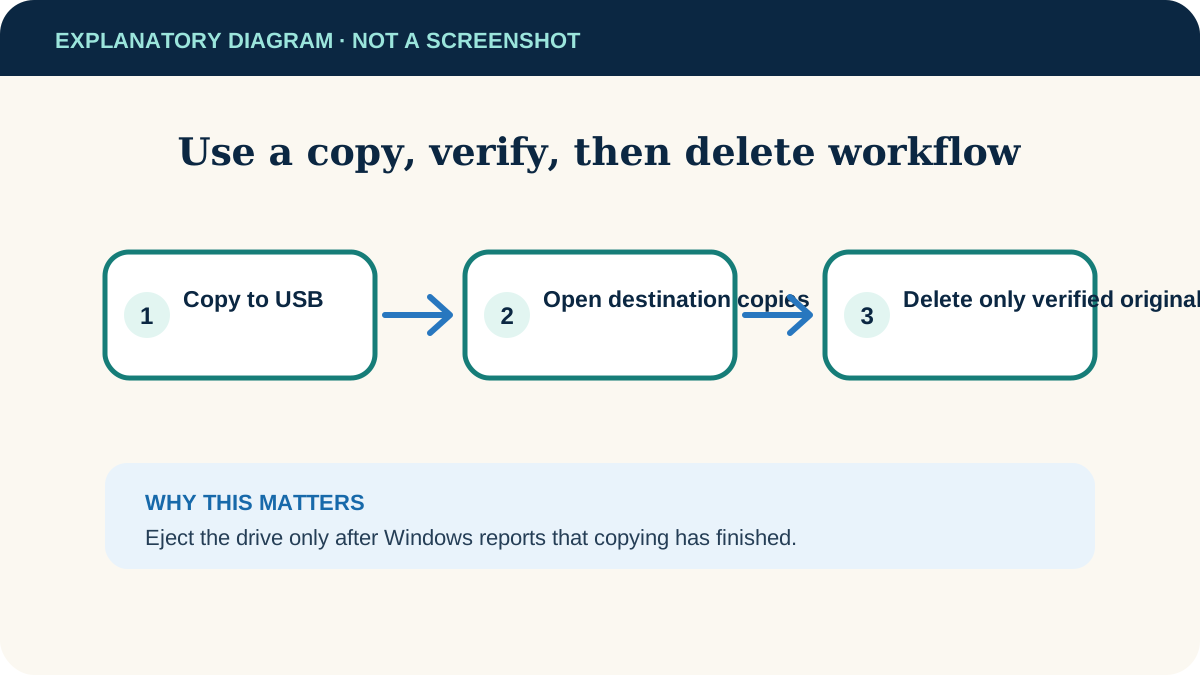
- 1
Copy rather than cut
Use Ctrl+C on the selected files, open the destination folder and use Ctrl+V. Copying leaves the originals available if the transfer is interrupted.
- 2
Wait for completion
Do not unplug the drive while the progress dialog is active. If Windows reports a skipped or failed file, note it and resolve that item before continuing.
- 3
Verify the destination
Open several copied files directly from the external drive, including one of the largest. Compare the selected file count and, when practical, the Properties size of source and destination folders.
- 4
Delete only the confirmed originals
After verification—and only if another copy is not required—delete the originals. Empty the Recycle Bin to reclaim space; until then, the files may still occupy the system drive.
- 5
Eject the drive
In the taskbar system tray, use Safely Remove Hardware and Eject Media, wait for confirmation and then disconnect it.
When the transfer does not work
The drive does not appear
Try another USB port, avoid an unpowered hub and test the drive on another computer. If Windows asks to format a drive that already contains needed data, cancel and investigate before proceeding.
A file is “too large”
The drive may be formatted as FAT32. Do not reformat a drive with needed data: formatting erases it. Use another drive with a suitable file system or back up everything before deliberately changing formats.
The copy is extremely slow
Many small files and older USB ports take longer. Keep the computer awake and let the copy finish; repeatedly cancelling can make verification harder.
A copied file will not open
Keep the source. Retry that file, check the destination drive for errors, or use a different drive. Do not delete the source until the destination opens correctly.
Useful next steps
These related tasks often come before or after this one:
- Use Windows storage cleanup safely for temporary files and other space that can be reclaimed without moving personal files.
- Transfer files from Android to Windows when the large files you need to archive are still on your phone.
Official sources
These instructions were checked against the following first-party documentation on October 12, 2026.