Clear Cookies and Site Data for One Website in Chrome
Remove one website’s stored data in desktop Chrome without clearing cookies for every site, then sign in and test again.
On this page
Find the site under “See all site data and permissions” and delete only it
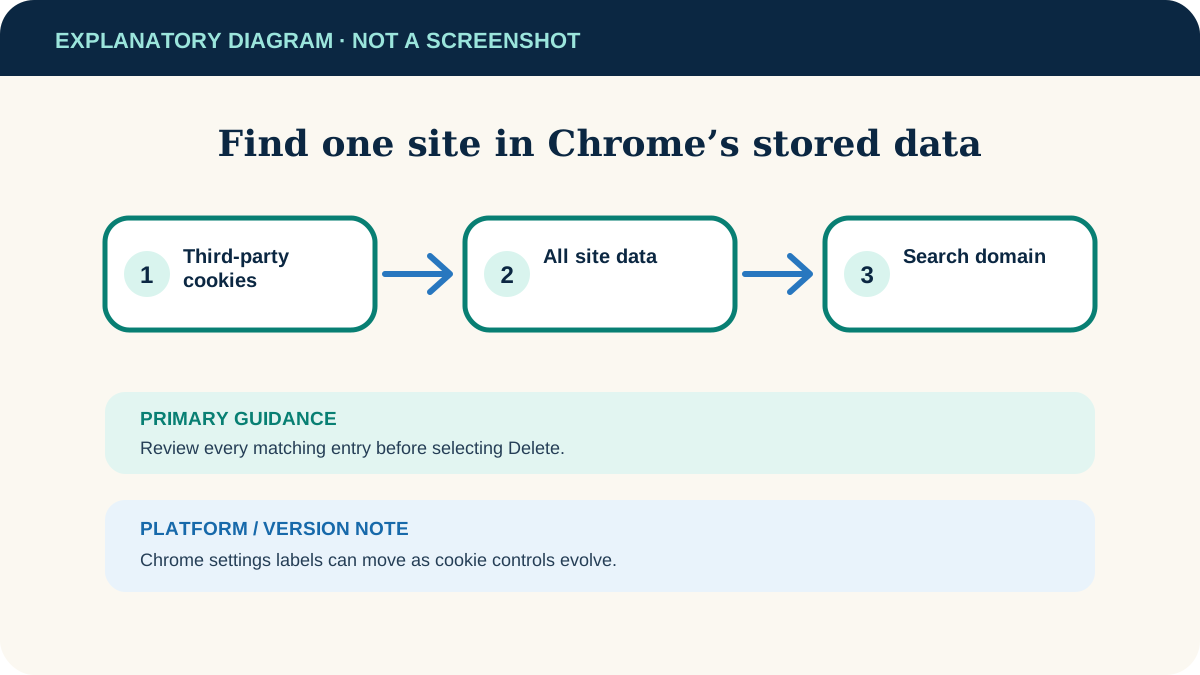
In desktop Chrome, open Settings → Privacy and security → Third-party cookies → See all site data and permissions. Search for the site, select Delete beside its entry and confirm.
Current Google Chrome on Windows, macOS and Linux. Managed browsers may limit the setting.
Researched from official browser documentation; not independently tested across every browser version or managed configuration. In-step visuals are labelled explanatory diagrams, not browser screenshots.
Delete stored data for one site
- 1
Save work and identify the domain
Note the exact website address and finish unsaved forms. A service may use more than one related domain.
- 2
Open site-data settings
In Chrome, choose More → Settings → Privacy and security → Third-party cookies.
- 3
Open the complete list
Select See all site data and permissions. Search for the site name or domain.
- 4
Delete the matching entry
Select Delete beside the intended site and confirm. Review multiple results before removing related domains.
- 5
Reload and sign in
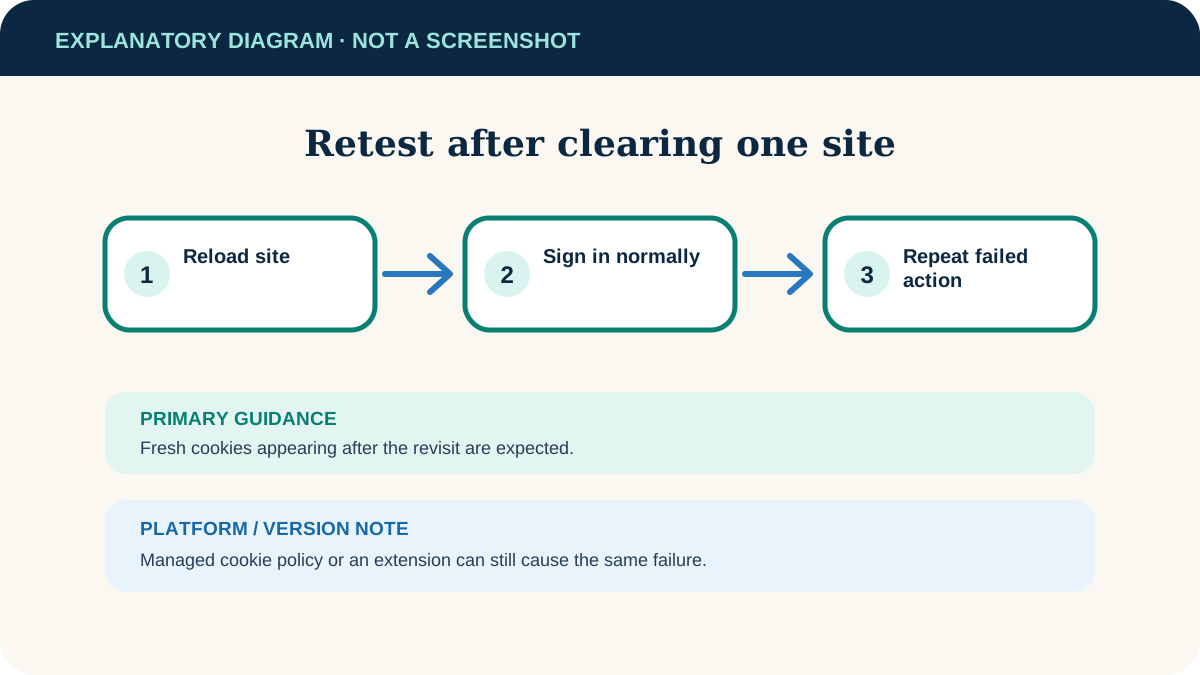
Return to the site, reload it and sign in again if asked. Test the problem action once.
Know what this resets
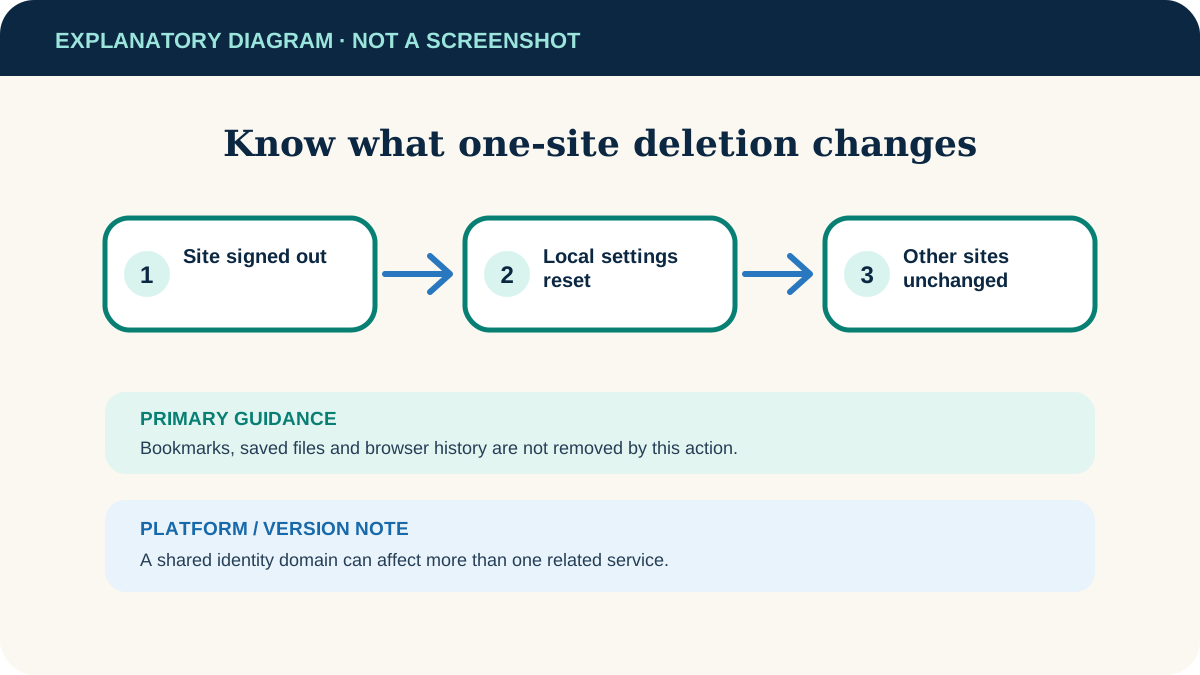
- Authentication cookies may be removed, so the website can ask you to sign in again.
- Local preferences, permissions or cached application data for that domain may reset.
- Bookmarks, downloads, saved files and browser history are not deleted by this site-specific action.
- The site’s server-side account data is not erased simply by clearing browser storage.
Sign in and restore only needed preferences
After the reset, sign in through the website’s normal address, complete any required multi-factor prompt and restore preferences deliberately. Avoid importing old site data from an extension while you are still checking whether the reset fixed the issue.
If the website still fails
The entry returns immediately
That is normal after revisiting a site; it can create fresh cookies. Judge whether the original fault is fixed.
Sign-in loops continue
Temporarily test without interfering extensions using the extension troubleshooting guide, and check whether third-party-cookie restrictions affect the sign-in provider.
Only one Chrome profile is affected
Confirm you cleared the site in the same Chrome profile where the problem occurs.
The setting is managed
A work or school policy may control cookies. Ask the administrator instead of bypassing the restriction.
Useful next steps
These related tasks often come before or after this one:
- Disable Browser Extensions to Troubleshoot a Website for the next related task.
- Allow Pop-ups for One Trusted Site in Chrome for the next related task.
Official sources
These instructions were checked against the following first-party documentation on October 12, 2026.