Disable Browser Extensions to Troubleshoot a Website
Temporarily disable Chrome or Firefox extensions, test the problem cleanly and re-enable them one at a time to find a conflict.
On this page
Turn extensions off temporarily, retest, then restore them one at a time
In Chrome, open More → Extensions → Manage extensions. In Firefox, open Menu → Add-ons and themes → Extensions. Switch extensions off, retry the page, then re-enable one at a time until the problem returns.
Current desktop Chrome and Firefox. This guide does not cover managed enterprise extensions or mobile browsers.
Researched from official browser documentation; not independently tested across every browser version or managed configuration. In-step visuals are labelled explanatory diagrams, not browser screenshots.
Prepare a controlled test
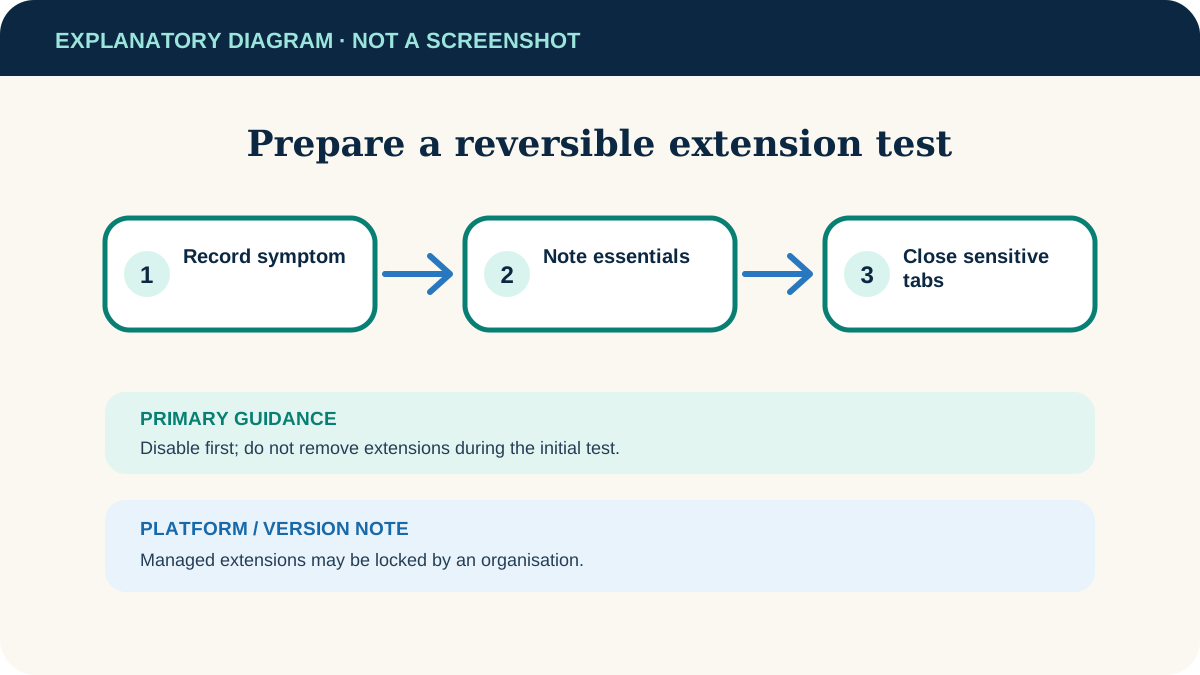
- 1
Record the symptom
Note the page address, exact error and action that fails. Save any unfinished form or document.
- 2
List essential extensions
Identify password, accessibility and security extensions so you know what will be unavailable during the test.
- 3
Close sensitive tabs
Avoid testing with banking or confidential work tabs open, especially if an unfamiliar extension may be involved.
Disable and isolate extensions in Chrome
- 1
Open the manager
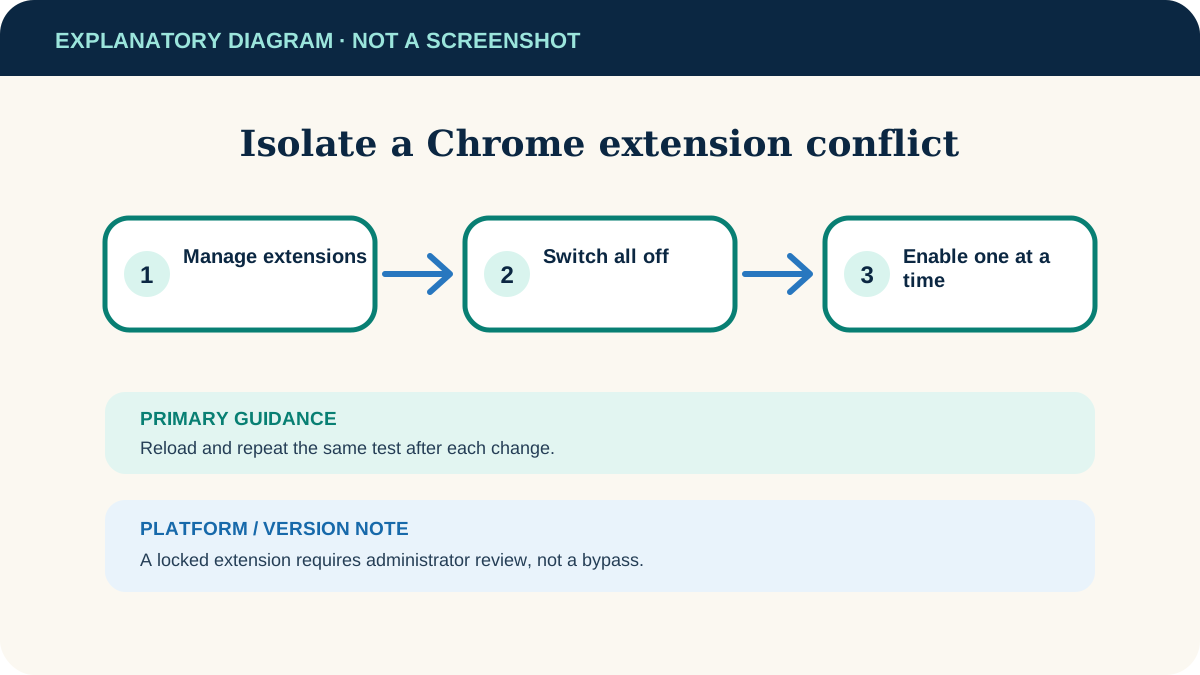
Choose More → Extensions → Manage extensions.
- 2
Turn extensions off
Use each extension’s switch; do not select Remove. Leave organisation-installed items alone if their controls are locked.
- 3
Retest the page
Reload it and repeat the recorded action once.
- 4
Re-enable one at a time
Turn one extension on, reload and test again. Continue until the fault returns; the most recently enabled extension is a strong suspect.
- 5
Update, repair or remove deliberately
Check the extension’s source and permissions. Chrome may offer Repair for a corrupted extension. Remove only when you no longer trust or need it.
Use Firefox Troubleshoot Mode or manual switches
Firefox Troubleshoot Mode temporarily disables extensions and some customisation. Open Menu → Help → Troubleshoot Mode, restart when prompted and test. Exiting Troubleshoot Mode restores the temporary changes.
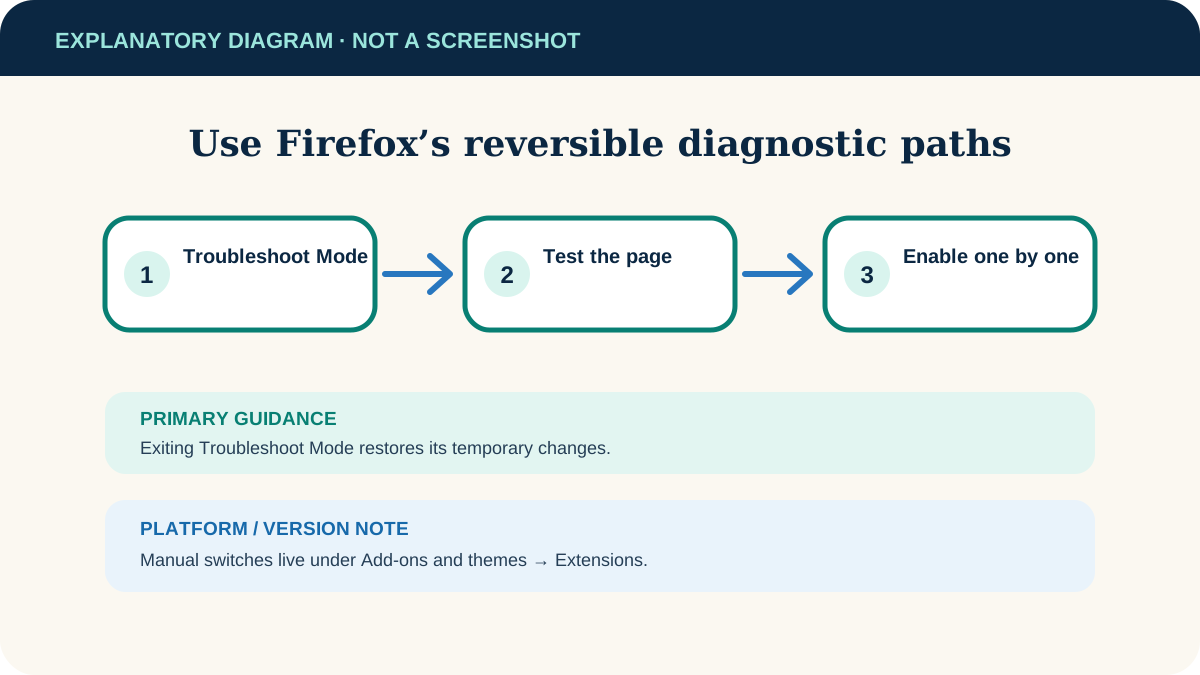
If the problem disappears, open Menu → Add-ons and themes → Extensions, disable extensions manually, restart normally and enable them one by one to identify the conflict.
Interpret the result
The problem disappears with extensions off
Repeat the one-by-one test. Report the page and browser version to the extension developer if one extension consistently triggers it.
The problem remains
Extensions are less likely. Clear only that site’s data, check browser updates and test the service status before resetting the whole browser.
An extension cannot be disabled
It may be installed by policy. Check the browser’s managed status and contact the administrator.
The extension looks unfamiliar
Review its permissions and store listing. Remove it if you did not authorise it, then run the browser and operating system’s security checks.
Useful next steps
These related tasks often come before or after this one:
- Clear Cookies and Site Data for One Website in Chrome for the next related task.
- Allow Pop-ups for One Trusted Site in Chrome for the next related task.
Official sources
These instructions were checked against the following first-party documentation on October 12, 2026.